
Control spending and access with Policies
Set monthly budgets and decide who can use which models, providers, tools, and integrations, all from Controls.
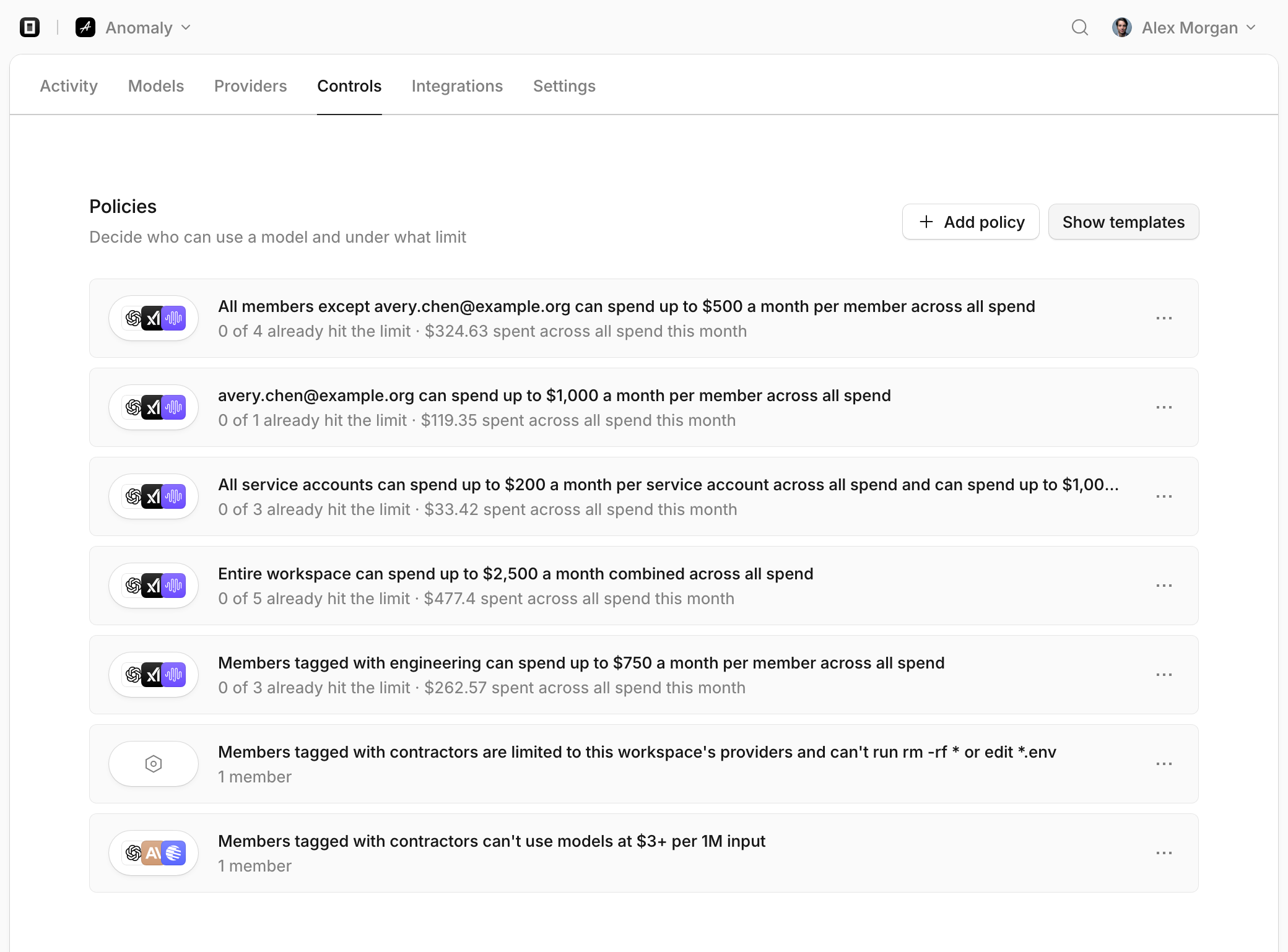
Every policy has two parts: who it covers, and the rules that apply to them. One policy can combine several kinds of rules, so everything about a group lives in one place. Policies are available in every workspace, and owners and admins can create and edit them.
Create a policy
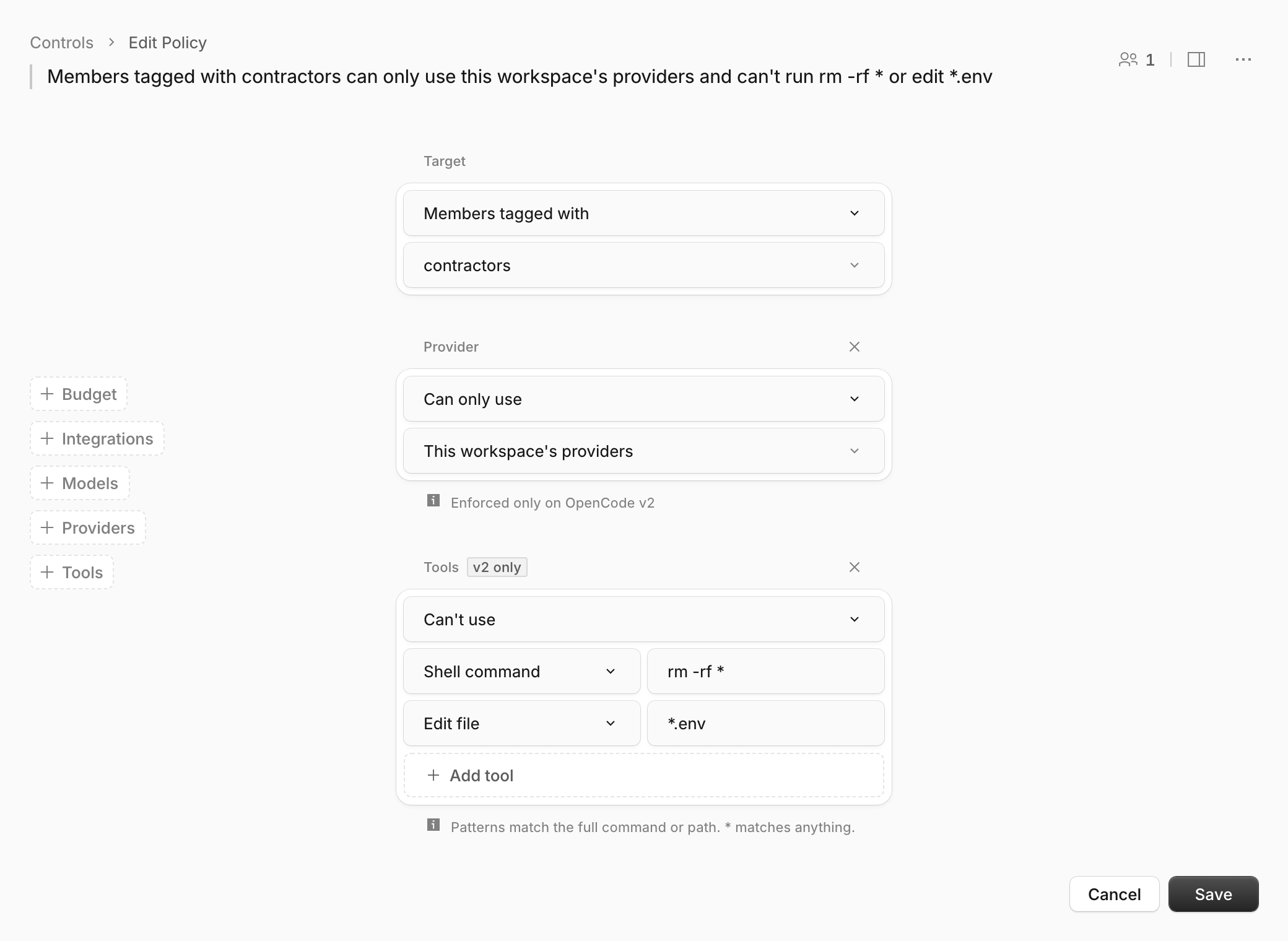
In Controls, choose Add policy. Pick who it’s for, then add rules from the list on the left: Budget, Models, Providers, Tools, and Integrations.
As you work, a sentence at the top of the builder spells out what the policy does. The same sentence appears in your list of policies, along with this month’s spending on any budgets.
Who a policy covers
A policy can cover:
- Entire workspace, with one budget shared by every member and service account.
- All members, including people who join later.
- Members tagged with something like
engineering, or everyone without that tag. - These members, picked by hand, or everyone except them.
- All service accounts, a few chosen ones, or all but a few.
Tags are the easiest way to cover a team. Tag someone and the team’s policy applies to them. Remove the tag and it stops.
Service accounts follow their own policies, not those of whoever created them. A service account’s rules cover all of its keys, so rotating a key changes nothing.
Each group can have only one policy. If you start a second, the builder points you to the first.
Budgets
A budget is a monthly spending limit. Give each member or service account their own allowance, or set one amount for the whole group to share.
Budgets work together. Give each member $500 a month, cap the entire workspace at $2,500, and both limits apply. Once a budget runs out, the requests it covers are refused until next month, or until you raise it.
By default, a budget counts All spend, including hosted web search. You can narrow it to certain models by vendor, price, or name. A narrowed budget counts only what’s spent on those models, as one allowance for all of them or a separate one for each.
Budgets reset at the start of each month, and free usage never counts. The builder shows what’s been spent so far and who has already hit their limit. A budget you add or change mid-month includes everything already spent that month, so saving never resets anyone’s allowance.
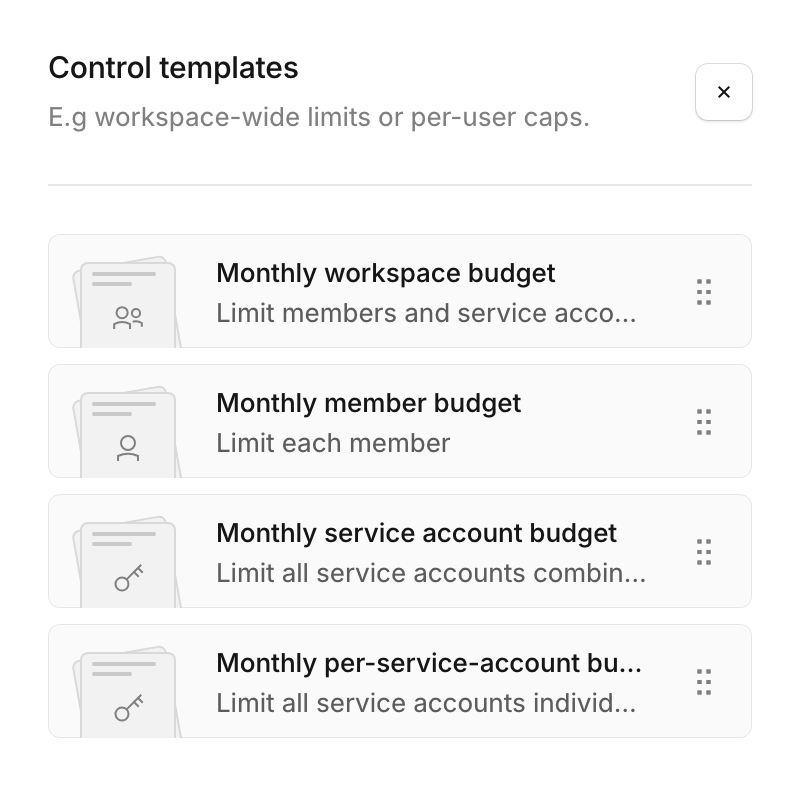
Your existing budgets have moved here. The quickest way to add a new one is with the Control templates beside your policies: a workspace budget, a budget for each member, or a shared or individual budget for service accounts. Click one or drag it into your policies, enter an amount, and save. If that group already has a policy, choose Add to it instead to add the budget there.
You can also start from a member’s page in Settings → Members. Choose Create budget policy, and the builder opens with that person already selected.
Models
A Models rule decides who can use which models. Save your most expensive models for one team, or put them off-limits to contractors.
Pick models by name, or filter them by vendor and price, like every model that costs $3 or more per million input tokens. Filters stay current, so new models that match are included automatically. Models picked by name stay fixed.
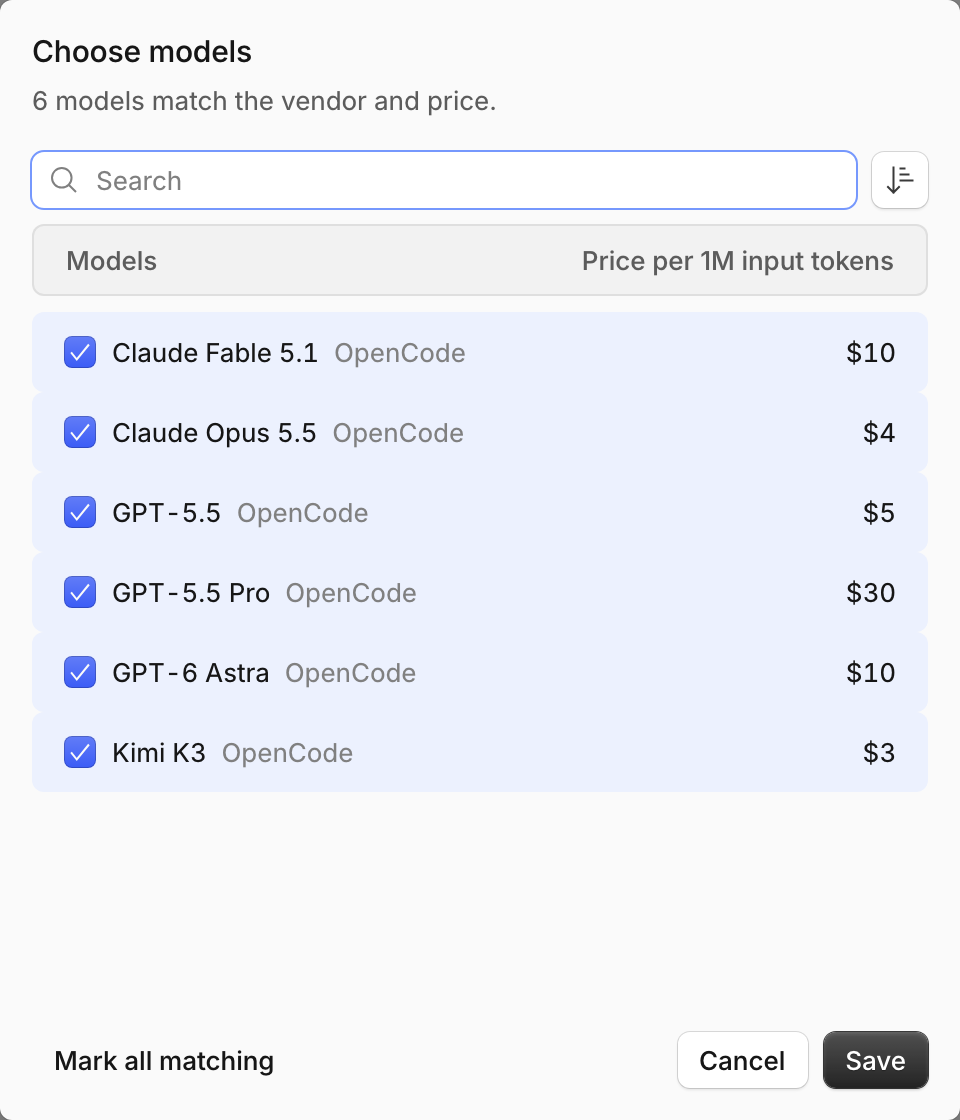
People see only the models they’re allowed to use, and requests for anything else are refused. Policies can only narrow access, so they can’t turn on a model that’s disabled for your workspace.
Providers
A Providers rule sets which model providers OpenCode can use. Keep a team on your workspace’s providers, allow a few extras like Ollama for local models, or block specific providers.
These rules apply to OpenCode while it’s connected to your workspace. They don’t cover personal API keys used outside it. If Managed providers only is on in Settings, it still applies to everyone.
Tools
A Tools rule limits what OpenCode can do. Block specific risky actions, like running
rm -rf * or editing *.env files, and leave everything else alone. Or allow only
a handful of tools: a review team might need nothing more than reading files and
asking questions.
Patterns match the whole command or file path, and * matches anything.
Integrations
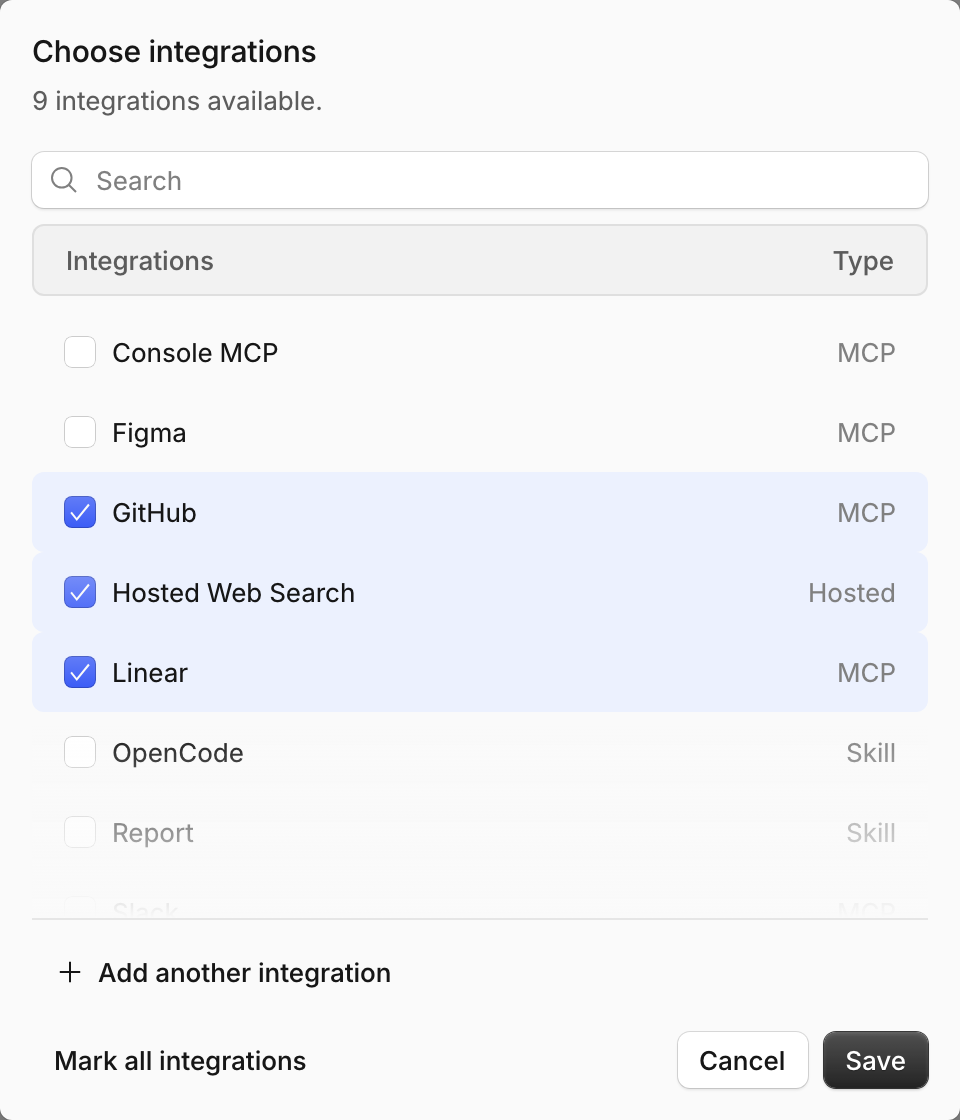
An Integrations rule covers MCP servers, plugins, hosted services, and skills. Allow only the ones a group needs, or block the ones it shouldn’t use. Your engineers might get GitHub, Linear, and web search, while a CI service account gets only what its jobs require.
Pick from the list, or choose Add another integration and enter its name. Adding an integration to a policy doesn’t install it, and blocking a plugin turns off its hooks too.
Preview before you save
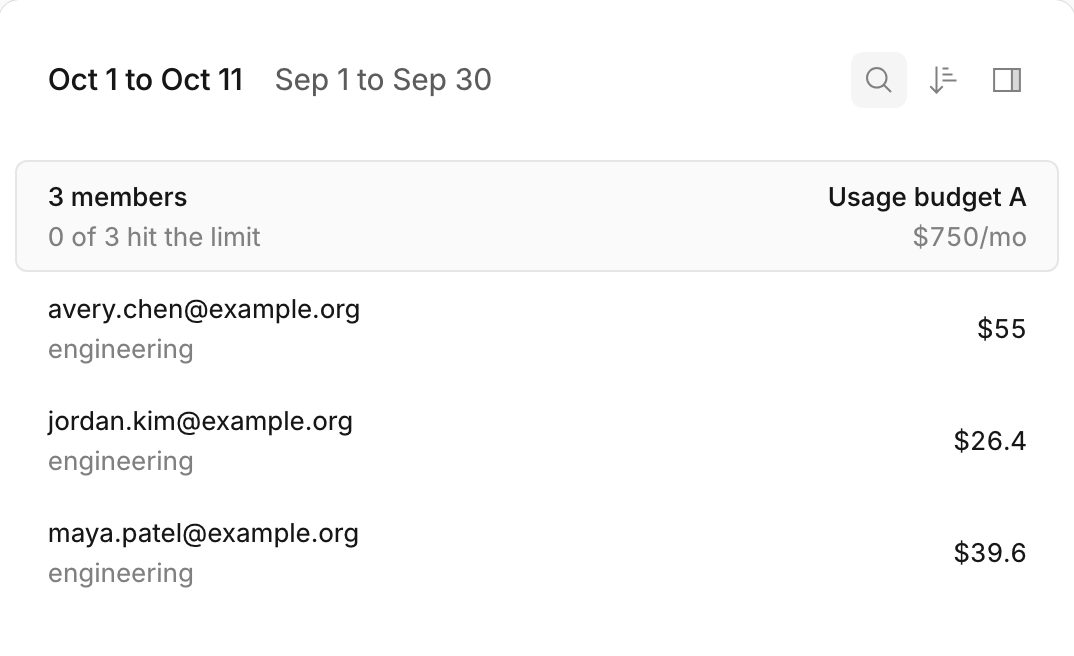
Click the member count at the top right of the builder to open the preview. It shows everyone the policy covers, what each of them has spent this month or last, and who has already hit their limit. Search by email or tag, or filter by vendor and model to see where the money is going.
If the policy has provider or tool rules, the preview also tells you how many people use a version of OpenCode that can enforce them.
Where rules take effect
Budgets and model rules are enforced by your workspace, so they apply to every request that goes through it, from any app.
Provider, tool, and integration rules are enforced by OpenCode itself. They take effect only in a version of OpenCode 2 that supports them and is connected to your workspace. Rules for hosted web search and Console MCP are also checked by your workspace, so they apply in any version.
When a policy turns a request away, its entry in Logs names the policy and links straight to it.
When policies overlap
People are often covered by more than one policy, such as a workspace budget and their team’s policy. All of them apply, and the strictest rule wins. If one policy blocks something, another can’t unblock it. If two policies each allow only certain things, a person gets only what both allow. And a bigger budget never overrides a smaller one.
To see everything that applies to one person, open their page in Settings → Members. It lists their budgets and model rules, with a link to each policy.